Read approved studio context
Workspace summaries, album and gallery delivery context, photo library records, archive search, project workflow state, and billing or plan status can be read when those scopes are approved.
Connect trusted AI assistants to the studio context already inside Photonfolio: galleries, photo records, archive search, workflow status, plan details, and response-only draft recommendations.
Use the assistant app you already work in. Photonfolio keeps approval, access areas, expiration, and disconnect controls in your settings.
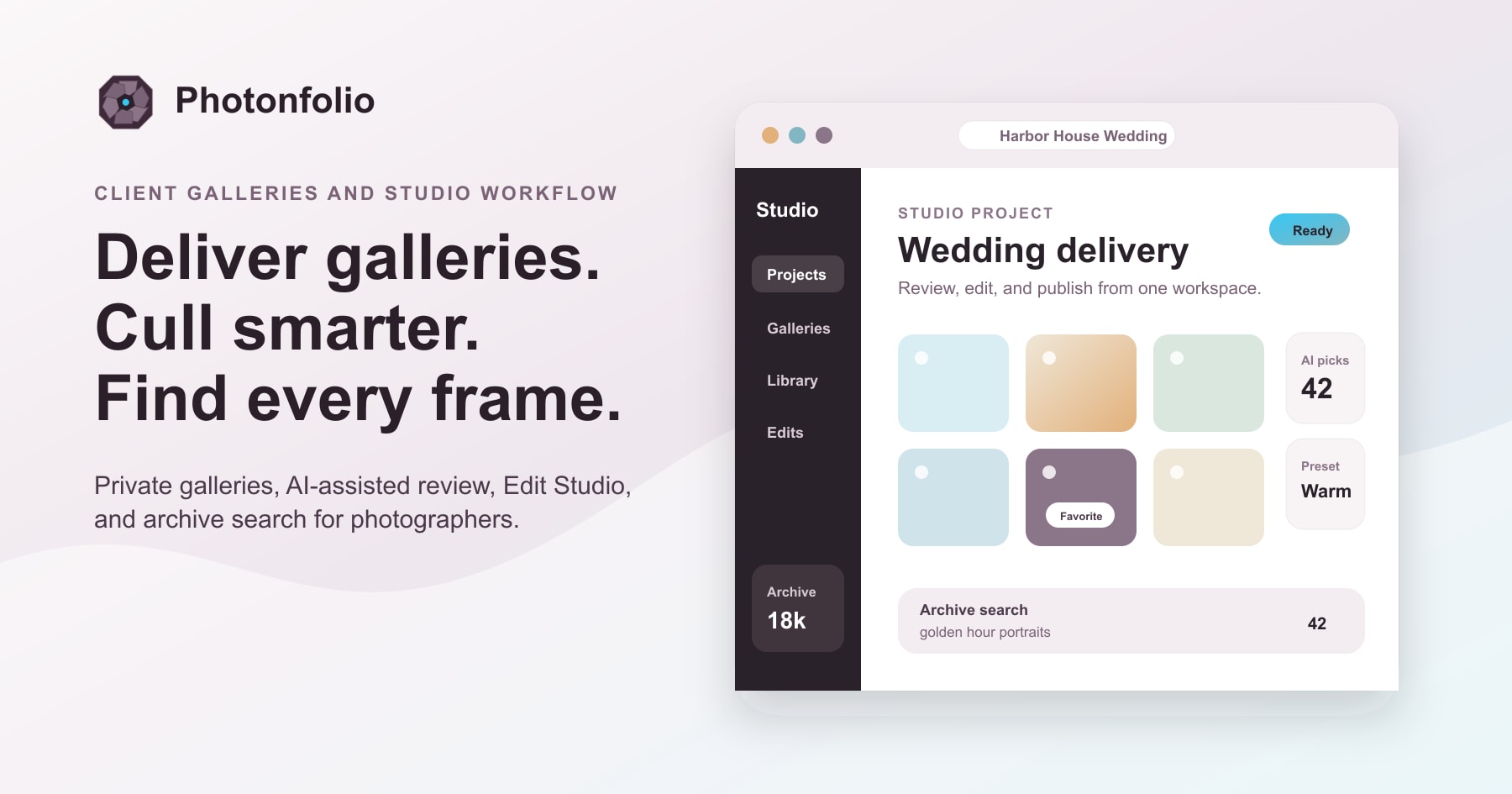
Connected assistant
Studio context ready
Search, workflow, gallery, and draft access stay limited to the areas you approve.
Read and draft
No gallery, billing, upload, or edit changes.
Photonfolio MCP is built for owner-led workflows: the assistant can read approved context and draft useful output, while final changes stay in Photonfolio.
Let an assistant search your approved Photonfolio context across galleries, photos, projects, and workflow status.
Ask for culling passes, delivery checklists, album prep, and client follow-up ideas without letting the assistant change records.
Every connection uses browser approval, selected access areas, expiration, and a disconnect control in Photonfolio settings.
The remote MCP exposes approved context and draft help. It does not upload, edit, publish, delete, send client messages, or change billing or account settings.
Workspace summaries, album and gallery delivery context, photo library records, archive search, project workflow state, and billing or plan status can be read when those scopes are approved.
Assistants can search Photonfolio context and request photo lists with optional text, album, project, pagination, and per-page filters.
The MCP can generate workflow recommendations from current context and a goal, but the result is a draft for you to review in the assistant.
photonfolio_workspace_contextphotonfolio_albumsphotonfolio_photosphotonfolio_searchphotonfolio_workflow_statephotonfolio_billing_contextphotonfolio_draft_workflow_recommendationsphotonfolio://workspace/contextphotonfolio://workspace/workflowphotonfolio://workspace/billingAgents can read the full capability inventory at photonfolio.com/mcp.md.
Start from Connected assistants in Photonfolio settings, then add the remote MCP URL to your assistant app. The assistant app will guide you through browser approval when it needs access.
Add Photonfolio as a remote MCP server, then sign in from Codex.
[mcp_servers.photonfolio]
url = "https://mcp.photonfolio.com/mcp"

codex mcp login photonfolio
Add the remote HTTP server, then authenticate from the MCP status view.
claude mcp add --transport http photonfolio https://mcp.photonfolio.com/mcp

# In Claude Code, run /mcp and authenticate Photonfolio.
Add the MCP URL to your Cursor MCP settings. Cursor will use its native OAuth callback.
{
  "mcpServers": {
    "photonfolio": {
      "url": "https://mcp.photonfolio.com/mcp"
    }
  }
}Create a custom MCP connection with the remote URL and browser approval enabled.
Name: Photonfolio
Remote MCP URL: https://mcp.photonfolio.com/mcp
Authentication: OAuth
Use streamable HTTP with bearer authentication. Clients can discover the authorization server from the MCP URL.
MCP URL: https://mcp.photonfolio.com/mcp
Transport: streamable HTTP
Auth: OAuth bearer token
Each connected assistant receives only the approved access areas. You can review active connections and disconnect access from Photonfolio settings whenever the work is done, then remove disconnected or expired connection records when you no longer need them.
Supported assistants open a Photonfolio approval step before they receive access to studio context.
See which assistant is connected, what it can access, when access expires, and when it was last used.
Assistant output is a recommendation. You decide what becomes a gallery, edit pass, delivery note, or client update.
Photonfolio MCP is intentionally practical: connect a trusted assistant, approve the access areas, receive studio-aware drafts, and keep final changes in your hands.
Photonfolio MCP is a connected-assistant path for trusted AI clients that understand the Model Context Protocol. It lets an approved assistant read selected studio context and return draft recommendations.
Add the Photonfolio MCP URL to a supported assistant app, then approve the connection in your browser. Active connections remain visible in Photonfolio settings.
No. The first rollout is read-only or draft-only. Assistants can prepare recommendations, but they cannot change albums, photos, billing, uploads, culling decisions, or account settings.
Each connection has approved access areas, expiration, audit records, and a disconnect control. Assistants receive only the access needed for the MCP tools they use.
Photonfolio works with remote MCP clients that support browser approval, including Codex, Claude Code, Cursor, ChatGPT or OpenAI API setups, and other compatible MCP clients.
Launch galleries, organize your archive, and keep studio context in one place. Connected assistants can help reason over that context when you approve access.